SALES:
Sales:
(866) 607-1718
Open Today Sales: 9 AM-7 PM



1250 Dexter St., Milan, MI 48160
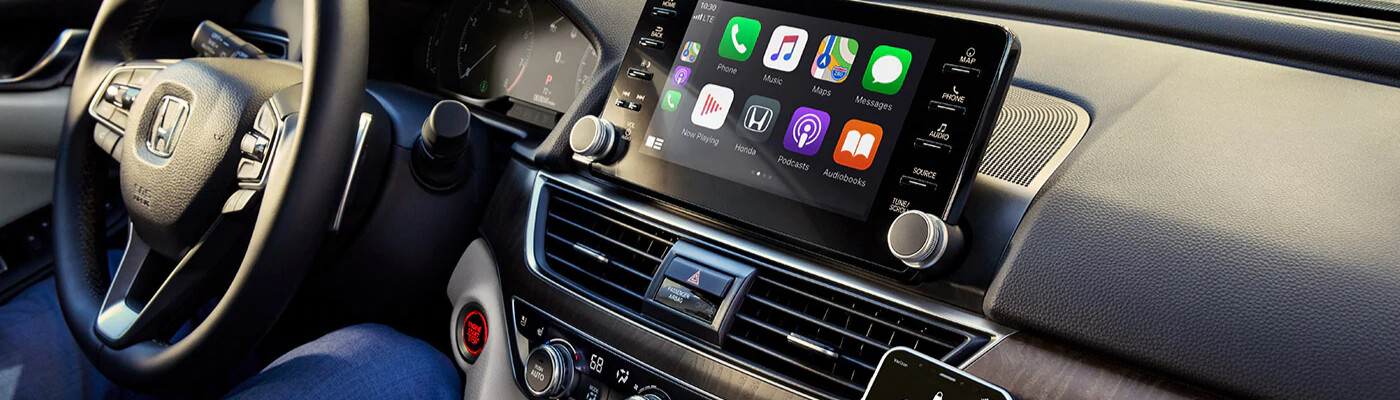
With the latest development in device and auto tech, drivers are now able to use their devices hands-free and wireless. This increases safety and convenience for drivers, some of whom need their vehicles close by at all times. But for some people, learning how to connect Apple CarPlay® and Android Auto™ can be a little difficult. Luckily for you, the experts at our Milan dealership put this guide together to help learn how to use Android Auto™ wireless in your new vehicle.
If you’re still finding it hard to learn how to use Android Auto™ without a USB, schedule a service appointment with our service center near Saline today. Contact us for more information about device connectivity with our new vehicles or visit us for in-person service today!
Like all things that involve device connectivity, there are a series of steps that you have to follow to make sure your Apple device is connected properly. Follow the steps below to do so:
Android devices go through the same process, which can easily be done with the help of the technicians at our Toledo, OH-area dealership. Learn how to use Android Auto™ without a USB using the steps below:
If you’re still having trouble learning how to connect Apple CarPlay® and Android Auto™ after following these steps, just come down to our Brighton-area dealership, where a trained technician will do it for you. Contact us for more help today!
As summer winds down and cooler weather approaches, it’s a good time to give your vehicle a little extra attention. Fall brings changing temperatures, wet roads, shorter days, and eventually winter weather, so taking care of a few basic maintenance items now can help keep you comfortable and confident behind the wheel. Before the leaves…
Your vehicle’s brake system is one of its most important safety features. Whether you’re commuting to work, taking a road trip, or running errands around town, reliable brakes help keep you, your passengers, and everyone else on the road safe. While brake components are built to last, they do wear down over time. Recognizing the…
Buying a new vehicle in the next few years could come with an additional tax benefit. Under a provision of the One Big Beautiful Bill Act, eligible taxpayers may be able to deduct up to $10,000 in qualifying vehicle loan interest each year for tax years 2025 through 2028. Unlike many tax deductions that require…